

OpenMove Driver App
Give your drivers everything they need for their trip, on iOS or Android, with real-time communication back to the office.
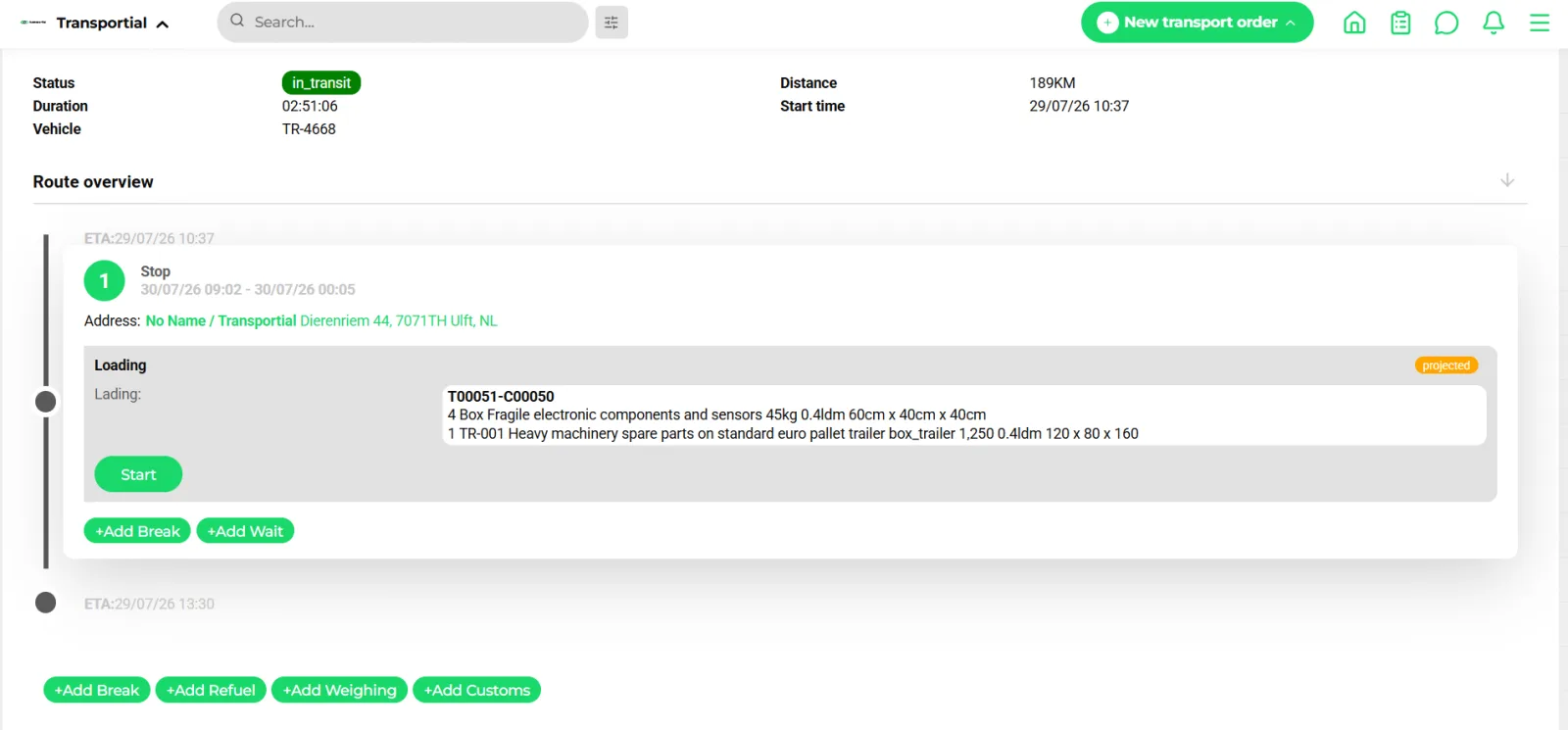
- Trip status, vehicle and distance
- Current stop with address and load details
- Start the action; ETA and position update in the office
- Add an unplanned stop, refuel, weighing or customs action
OpenMove is Transportial's native mobile app for drivers. It puts the full trip plan in the driver's pocket, guides them step by step through every action, captures proof of delivery, and keeps the operations center informed of every move, all without radio calls or paper.
What it does
Everything this module does, named the way you will find it in the product.
Two ways to run a trip
- OpenMove app on iOS and Android
The native driver app with push notifications (Firebase), live position broadcast as a mobile board computer, and the same actions, questionnaires, photos and signatures as the web view.
- Driver execution link
A per-trip web link (with a QR code on the driver trip document) that runs the whole trip from any browser: start and complete actions, answer questionnaires, add photos, signatures and documents, and book timeslots, without installing anything.
- Board computers
Where the truck already has Transics, Webfleet, Trimble or Mapon hardware, trips go to the terminal and status, positions and messages come back. See vehicle tracking.
- First-to-accept dispatch
Offer a trip to drivers within a radius (default 50 km, up to 25 drivers, 30-minute expiry); the first to accept wins and the others are told the offer is gone.
Every action, with a result
- Seventeen action types
Loading, unloading, move, wait, stop, break, refuel, customs, weighing, booking, transfer, coupling and uncoupling drivers and equipment, pallet exchange and generic actions. Drivers can add unplanned stops, refuels, weighings or customs actions on the road.
- Action results
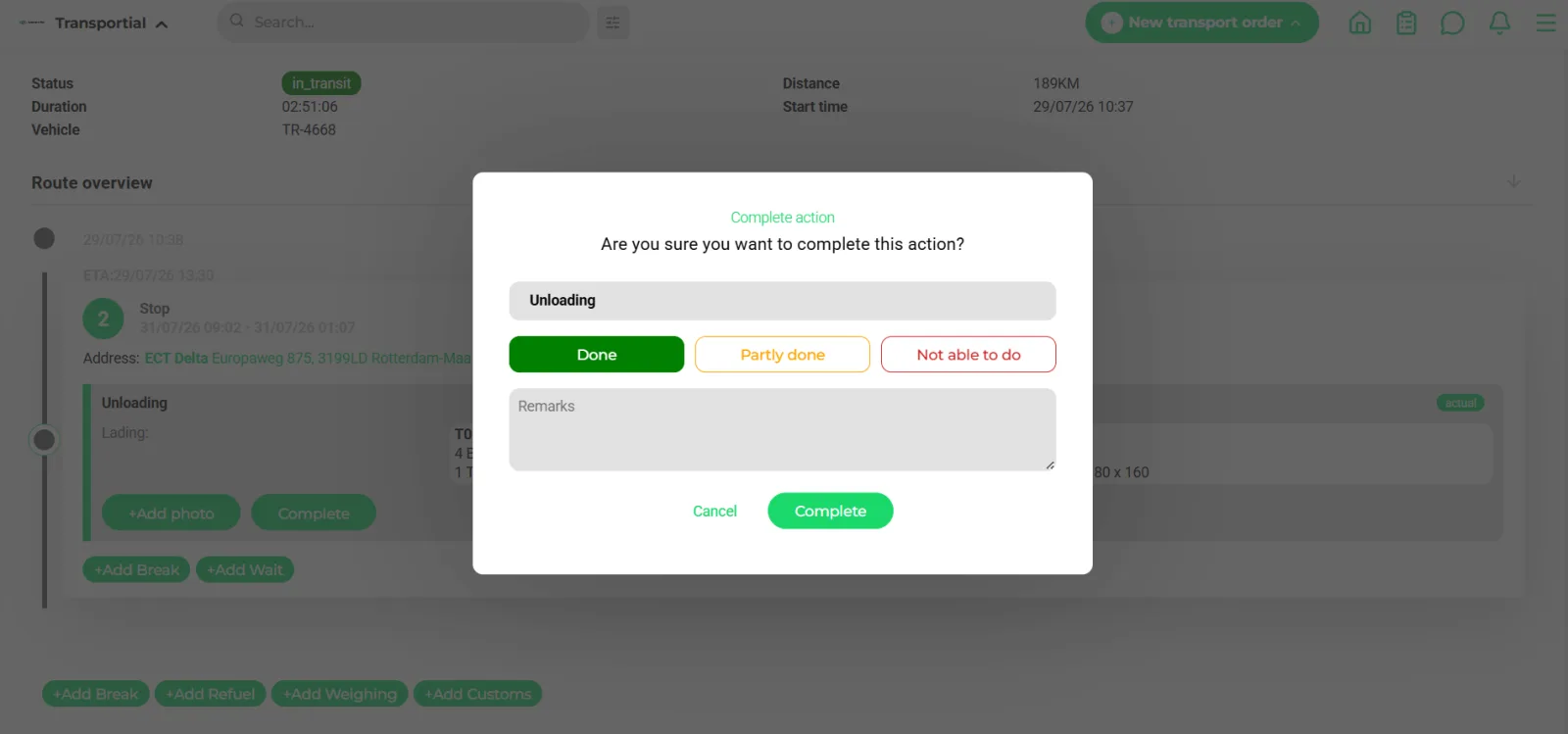
Done, partly done or not able to do, with remarks. Results map to succeeded, failed, partially succeeded or canceled and feed the exceptions engine for replanning.
- Grouped execution
Handle several actions at one stop one by one, choose which to complete together, or complete all at once, per platform setting. Actions can auto-start on arrival by geofence.
- Realized times and ETAs
Start and end times are stamped per action; the trip progresses through in transit and completed, and the Watchtower updates the ETA of the next stop.
Proof and paperwork at the stop
- Action result questionnaires
Per action type, configure questions of type text, select, multi-select, date, date-time, number, boolean, signature, photo or message, with conditional questions. Answers map back to the action, the shipment or the result with a strategy: overwrite, record the difference or append a comment.
- Photos, signatures, documents
Captured proof attaches to the right order automatically; expired documents raise an alert. See proof of delivery.
- Discrepancy detection
A reported quantity that differs from the planned one raises the "questionnaire conflict" event, which can notify the office or open a to-do.
- Pallet exchange
Take-and-return actions feed the pallet balance ledger per customer and location.
Talk to the office
- Chat per trip and vehicle
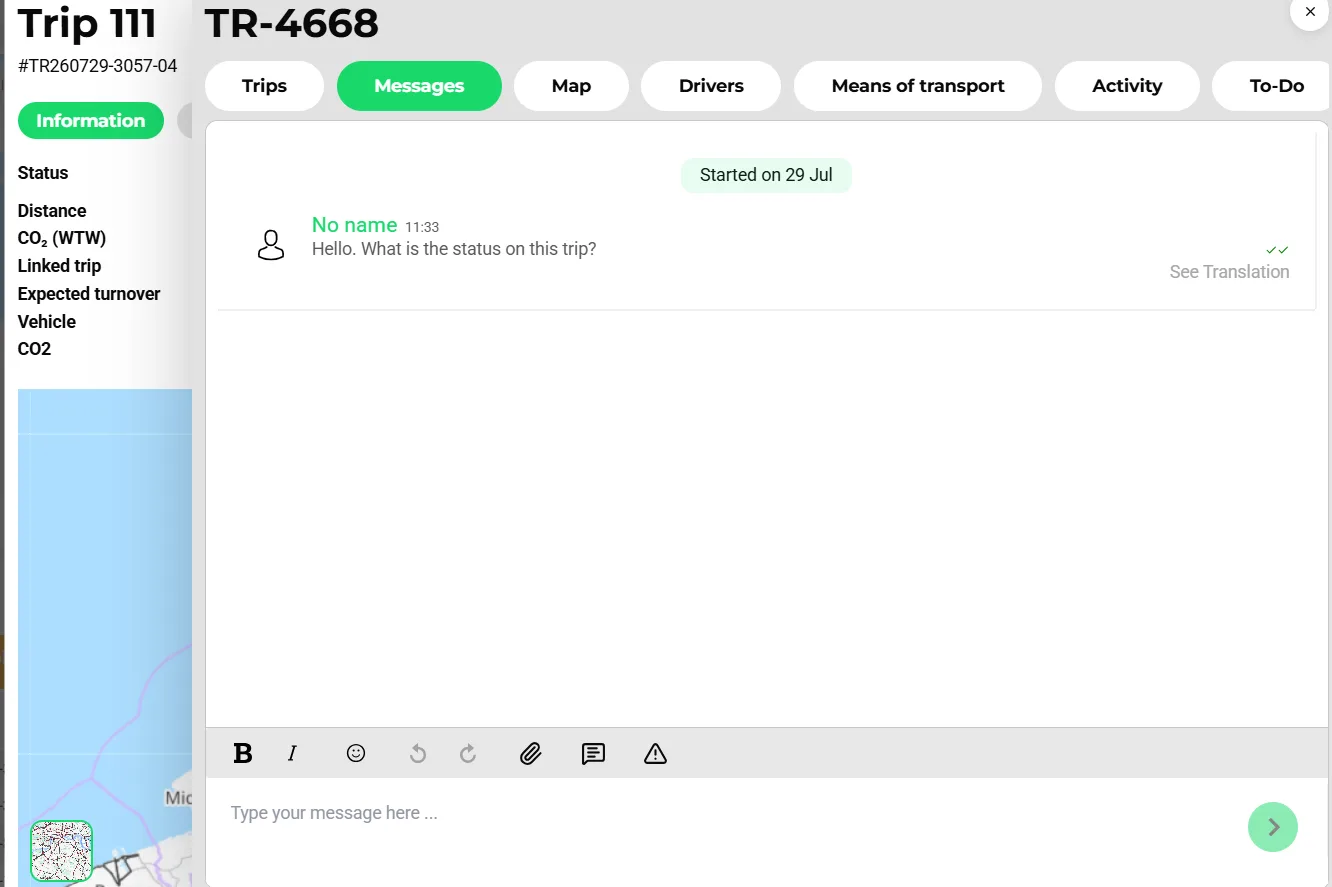
Threads per shipment, vehicle and driver with read receipts (read by the driver, delivered to everyone, read by everyone), templates and file sharing. See in-app chat.
- Auto-translation
Messages translate with DeepL or Google Cloud Translation, with a per-tenant translation memory and a monthly character budget.
- Automated instructions
Trip confirmations, changes and cancellations reach the driver by e-mail, notification, board-computer message, WhatsApp or Telegram through message automations.
How it works
Confirm the trip
The planner confirms a trip. Automations send it to the driver, or the trip is offered first-to-accept to drivers nearby.
Open it anywhere
The driver opens OpenMove, scans the QR code on the trip document, or taps the execution link.
Drive and act
Start the trip, start each action on arrival (or let the geofence do it), complete it with a result, answer the questionnaire and capture photos or a signature.
Handle the unexpected
Add a refuel, a weighing, a customs stop or an unplanned stop; report partly done or not able to do so the office can replan.
Close
End the trip, or end it and start the next. Proof, times and documents are already on the order.
Why the execution link exists next to the app
Subcontracted drivers, agency drivers and one-off carriers will not install your app for a single job. The driver execution link gives them the full execution flow in a browser, protected by a per-trip token, with a QR code printed on the trip document. The office gets the same realized times, results, photos and signatures whichever path the driver takes.
Questionnaires turn tribal knowledge into data
Every operation has questions that matter at the stop: seal number, temperature on arrival, number of pallets returned, was the consignee present. Action result questionnaires ask them at the moment they can still be answered, with conditional follow-ups, and write the answers back to the shipment or the action instead of into a photo of a note.
Questions can also be mapped to board-computer question identifiers, so a fleet on Transics answers the same questionnaire on the terminal and the answers land in the same fields.
Concepts & terminology
The words this module uses, with links to the full glossary where a term has its own page.
- Action result
- The outcome a driver records when completing an action: done, partly done or not able to do, with remarks and attachments.
- Action result questionnaire
- A configurable set of questions asked when an action of a given type is completed; answers map back to the data.
- Driver execution link
- A tokenized web link per trip that lets a driver execute the trip in a browser, with a QR code on the trip document.
- Proof of delivery (POD)Glossary
- Photos, a signature and the realized time captured at the unloading action and attached to the order.
- First-to-accept
- Dispatching by offering a trip to nearby drivers; the first acceptance wins.
- Geofence
- A radius around a location that can auto-start actions on arrival and raise enter and exit alerts.
- Grouped action execution
- Completing several actions at the same stop together, one by one or by selection.
Works with
Connectors that feed or consume this module out of the box.
 Webfleet
 Trimble
 WhatsApp
 Telegram
Built for
Where this module carries the most weight.
OpenMove runs on iOS and Android and registers as a mobile board computer, so positions and statuses arrive like any telematics feed. Push notifications go through Firebase Cloud Messaging. The driver execution link offers the same flow in a browser, protected by a per-trip token.
Frequently asked questions
Do drivers need to install an app?
No. OpenMove is available on iOS and Android, but every trip also has a driver execution link that runs the full flow in a browser, including questionnaires, photos, signatures and timeslot booking.
Does it work with our board computers?
Yes. Transics, Webfleet, Trimble and Mapon receive planning and return positions, activities, messages and driver reports; questionnaire questions can be mapped to board-computer question IDs.
What does the driver capture at delivery?
The result (done, partly done, not able to do), remarks, photos, a signature, documents and the answers to the questionnaire configured for unloading actions. It attaches to the order as proof of delivery.
Can drivers add stops themselves?
Yes. Unplanned stops, refuels, weighings and customs actions can be added on the road, and reported stops from board computers can be recognized as planned work.
How does the office know where the driver is?
The app broadcasts position as a mobile board computer; the Watchtower, the map and customer tracking links update live, and ETAs recalculate.
Can I dispatch to whoever is closest?
Use first-to-accept dispatch: the trip is offered to drivers within a radius with an expiry, and the first to accept gets it.
View all features
Ready to put this to work?
Start free with full platform access, or talk to our team about your specific operation.