

Message Automations
Send the right message to the right person at exactly the right moment, triggered automatically by 75+ operational events.
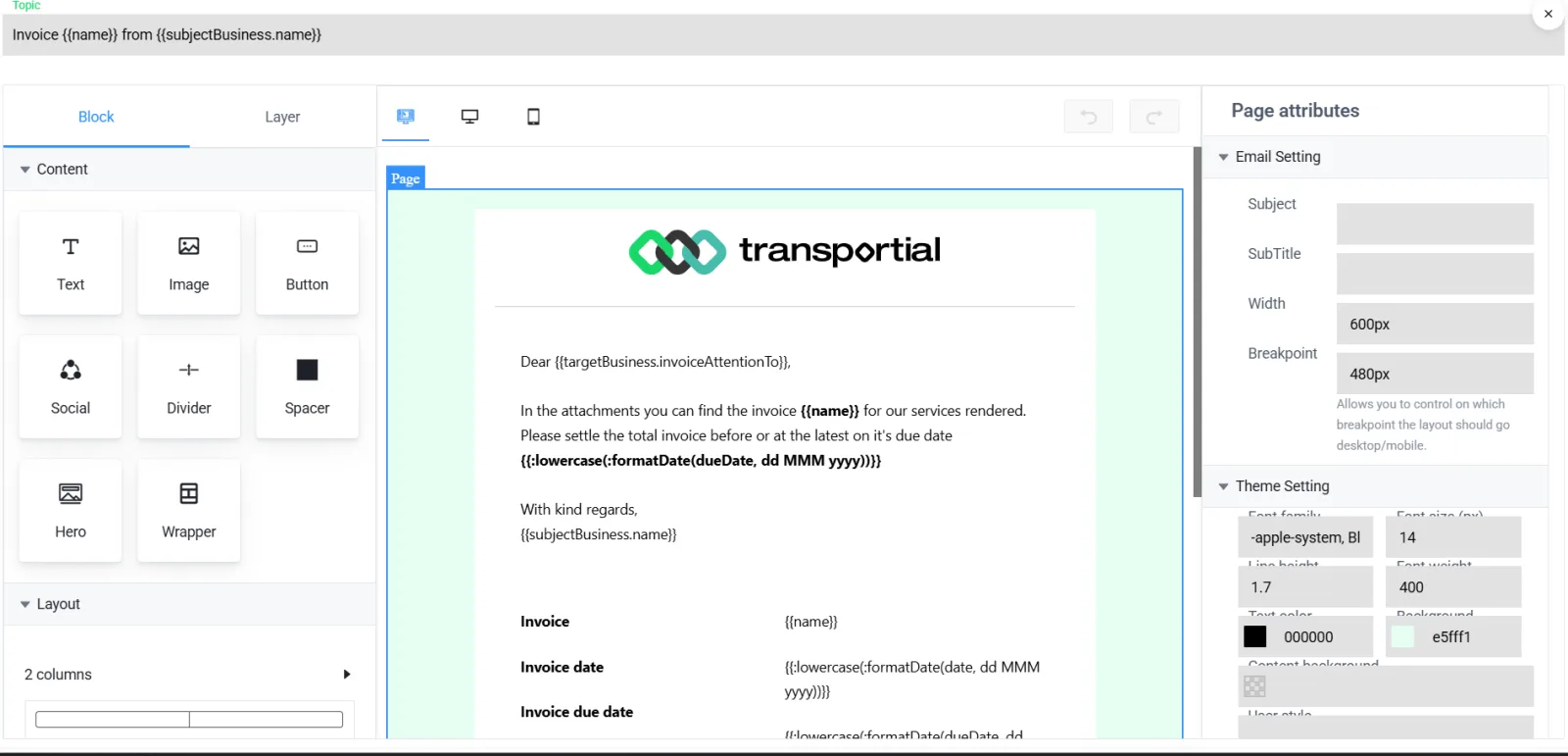
- Blocks: text, image, button, social, divider, spacer
- Template variables such as invoice number and due date
- Page attributes and theme
Manual status updates are a time-sink and a source of errors. Transportial's Message Automation engine monitors your operation in real time and fires pre-configured communications whenever a defined event occurs, whether that's a trip confirmed, a delivery completed, or a temperature threshold breached.
What it does
Everything this module does, named the way you will find it in the product.
Triggers
- About 77 trigger events
Trip created, updated, confirmed, started, finished, canceled; each action type created or updated and lifecycle changes; order, shipment, quote, invoice (including sent), business, user, location and capacity contract events; vehicle events such as location update, engine start and stop, stop-duration exceeded and home-base return overdue; booking, calendar, to-do, sensor value and questionnaire conflict events.
- Three trigger types
Trigger (entity event), scheduler (interval or cron) or listener (react to inbound messages).
- Conditions and data
A TQL query and filters select exactly which entities qualify; recipient modules resolve who gets it (the order's customer, the trip's driver, a team, a contact).
- Per-user opt-in
Automations can be user-enableable with permission filters, so each planner chooses which notifications they receive.
Channels and content
- Five channels
E-mail (SMTP or Microsoft 365 Exchange), chat (including board computers), in-app and push notification, WhatsApp and Telegram. The platform offers the channels its integrations support; SMS is delivered through a connected provider such as Twilio or Bird.
- Three automation types
Message (outbound), file request (asks for a document and files the reply) and question-answer (asks and records answers).
- Visual e-mail designer
Drag-and-drop blocks, brand assets and a template language with variables, loops, conditionals, date formatting and fallbacks.
- Attachments
The entity PDF, a custom document template, an insight report or a static file.
- Multi-language
Texts per language with a language selector; the recipient's preferred language picks the version.
The template catalog
Sixty-odd ready automations, seeded in English and Dutch.
- Administration
Send invoice, first, second and final payment reminder, send quote, quote follow-up, quote accepted or declined, order received and confirmation, invoice awaiting approval, invoice paid, capacity contract confirmation.
- Planning
Send trip to driver by e-mail, Telegram, WhatsApp or board computer; trip canceled and start-time changed; trip started and completed; booking confirmed and canceled.
- Customer updates
Trip planned for your order, ETA update, trip started, goods loaded, goods delivered, trip completed, trip canceled.
- Operations and reports
Task assigned, vehicle overdue at home base, wait time exceeded at a stop, and weekly or monthly shipment, orders per customer, revenue per customer, open invoices aging, fleet utilization and trips per driver reports.
Beyond messages
- Workflows
A visual workflow designer with trigger, condition, HTTP request, update entity, send message, delay, TQL query, set variable, log and end steps, with draft, active, paused and archived states and an execution history.
- Custom alert rules
The same trigger events plus a condition raise an alert with a level, an entity type and an action. See vehicle tracking.
- Generate with AI
Describe the automation and it is drafted with trigger, condition, channel and text.
How it works
Start from a template or blank
Pick "Trip ETA update" from the catalog or create a new automation.
Set the trigger
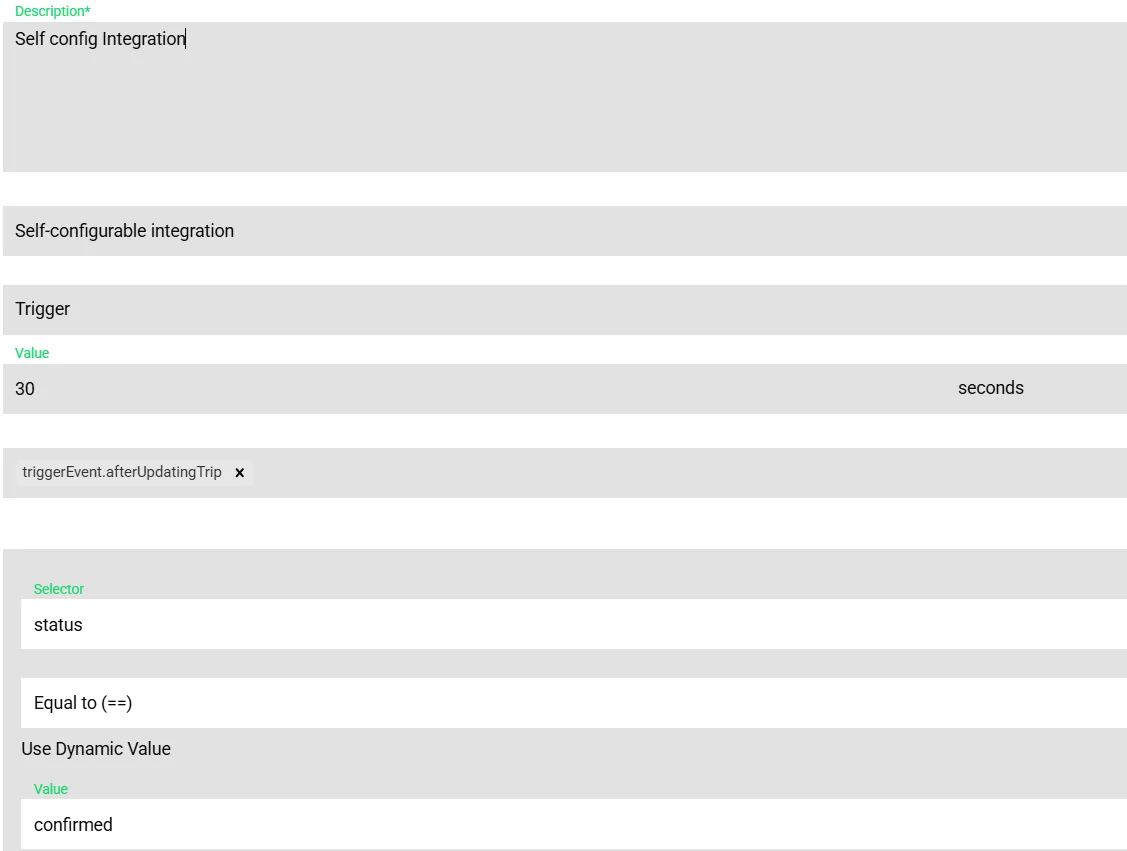
Choose the event, the schedule or the listener, and narrow it with a condition such as status equals confirmed.
Choose recipients and channel
The customer on the order, the driver on the trip, a team; e-mail, chat, notification, WhatsApp or Telegram.
Write the message
Design the e-mail or write the text with variables, in every language you serve, and attach the PDF or report.
Switch on and watch
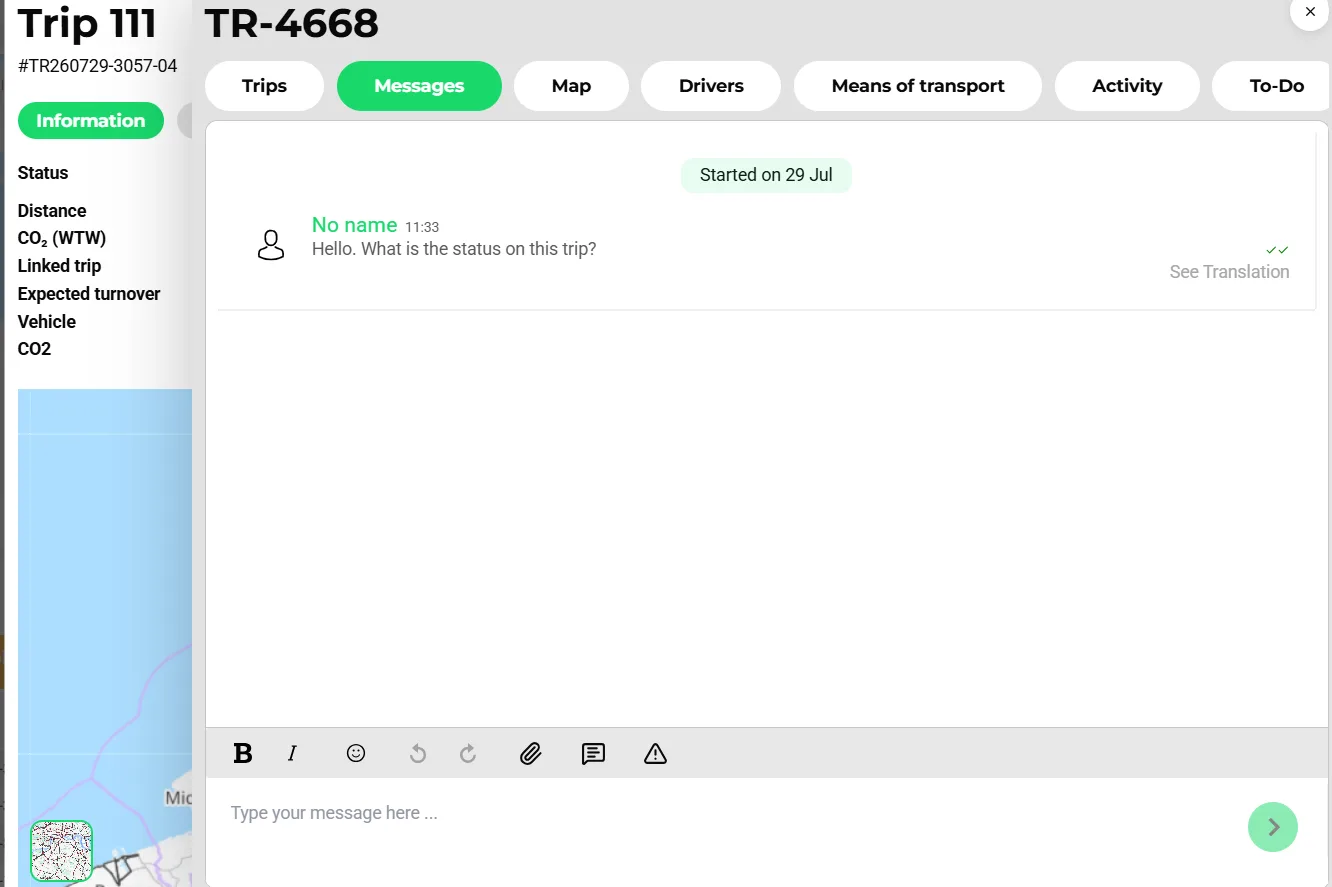
Sent messages appear on the entity's activity and in the chat thread when chat is the channel.
One event model for automations, alerts, workflows and integrations
Transportial exposes the same list of trigger events to message automations, custom alert rules, workflows and outbound integrations. Learn the event once, "after finishing trip", and you can e-mail the customer, raise an alert if the trip finished late, run a workflow that updates a field, and push the trip to an ERP, all from the same moment.
Why file requests and question-answer exist
A lot of communication is a question, not an announcement: "send us the customs declaration", "confirm the delivery slot". File-request and question-answer automations send the ask, wait for the reply on the same channel, and file the answer on the entity, so the loop closes in the record rather than in someone's inbox.
Concepts & terminology
The words this module uses, with links to the full glossary where a term has its own page.
- Trigger event
- A named moment in the data, such as after confirming a trip or after sending an invoice, shared by automations, alerts, workflows and integrations.
- Listener
- An automation that reacts to inbound messages instead of an entity event.
- Channel
- How a message is delivered: e-mail, chat, notification, WhatsApp or Telegram.
- Recipient module
- A rule that resolves who receives the message from the entity: customer, driver, team, contact.
- TQL
- Transportial Query Language, used here to select which entities qualify for an automation.
- Workflow
- A visual, multi-step automation with conditions, HTTP requests, entity updates and delays.
- File request
- An automation that asks for a document and files the reply on the record.
Works with
Connectors that feed or consume this module out of the box.
 WhatsApp
 Telegram
 Microsoft 365
 Webfleet
Built for
Where this module carries the most weight.
Automations are evaluated by worker nodes on an internal event bus backed by Apache Kafka. E-mail delivery uses SMTP or the Microsoft Graph API; WhatsApp uses the Meta Graph API and Telegram the Bot API. About 77 trigger events are shared with alerts, workflows and integrations.
Frequently asked questions
Which channels are supported?
E-mail through SMTP or Microsoft 365, chat including board-computer messages, in-app and push notifications, WhatsApp and Telegram. SMS goes out through a connected SMS provider such as Twilio or Bird.
Can I send in the customer's language?
Yes. Each automation holds texts per language and the recipient's preferred language selects the version.
Can automations run on a schedule?
Yes. Scheduler triggers run on an interval or a cron expression, which is how the weekly and monthly reports work.
Can I attach documents?
Yes. The entity PDF, a custom document template, an insight report or a static file.
Can users choose what they receive?
Yes. User-enableable automations appear in each user's automation preferences with permission filters.
What if I need logic beyond one message?
Use workflows: visual multi-step automations with conditions, HTTP requests, entity updates, TQL queries and delays, with execution history.
View all features
Ready to put this to work?
Start free with full platform access, or talk to our team about your specific operation.