

Interactive Plan Board
A drag-and-drop Gantt planning board that gives planners complete visibility over every resource.
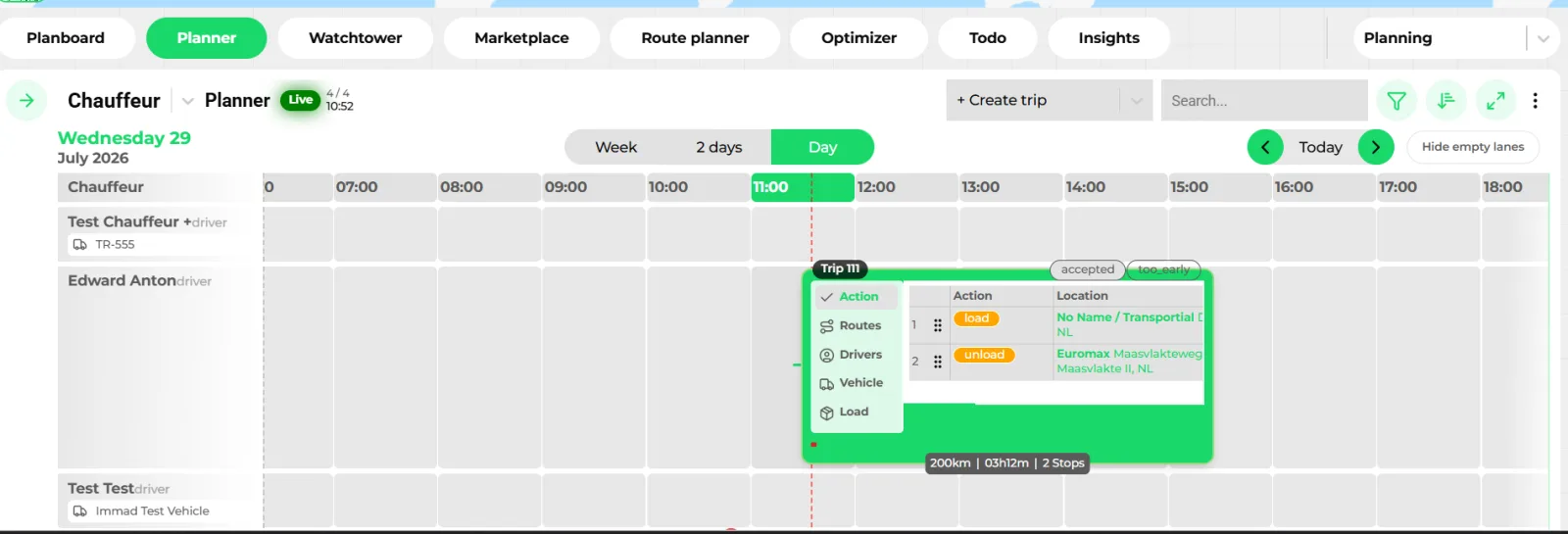
- Resource lanes: drivers, vehicles or means of transport
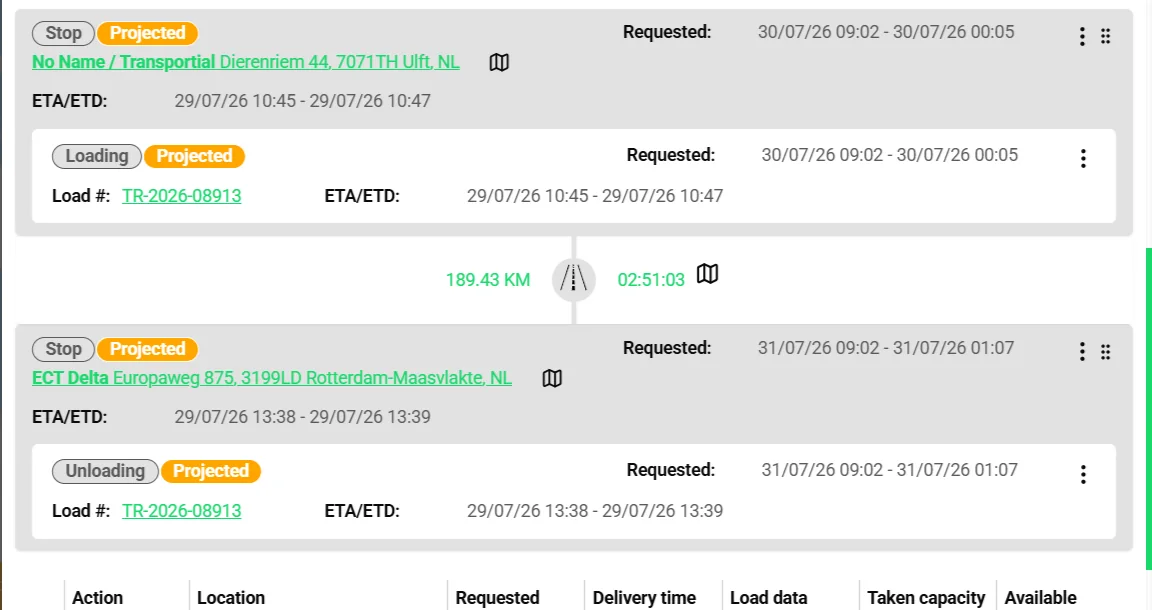
- Trip card with stops, route and load, dragged onto the lane
- Day, 2-day and week views; hide empty lanes
The Plan Board is where logistics planning happens in real time. See every vehicle, driver, trailer, and trip on a unified timeline. Drag shipments onto resources in seconds, spot conflicts before they become problems, and switch between views to match your workflow.
What it does
Everything this module does, named the way you will find it in the product.
Four boards, one operation
Pick the resource you plan around; the data is the same underneath.
- Vehicles, drivers, trips and means of transport
Four board types, each a spreadsheet-style grid with configurable columns, filters and sorting by relevance, fleet number, location update, message or plan status.
- Live mode and next-trip view
Boards refresh live. "Next trip view" and "second next trip view" show what each resource does after its current trip, so gaps and overlaps are visible before they happen.
- Capacity-contract resources
Subcontracted vehicles from capacity contracts appear on the same board, with a filter to show only contracted capacity.
- Plan status per trip
Every trip carries a plan status (OK, too early, too late, off route, not planned) computed from ETAs against requested windows, and a route status (on route, off route).
Columns that answer the planner's questions
About 180 configurable columns; the ones below are the reason planners stop opening other tabs.
- Driver hours
Remaining daily and two-weekly driving time, reduced rests left, tachograph card and ADR validity dates, all sourced from board computers and tacho data under EU 561/2006.
- Cabotage
Cabotage journeys made in the current country, whether another cabotage trip is allowed, and the date of the last international trip.
- Vehicle state
Fuel percentage, speed, heading and current country from telematics; unread chats and open communication requests per trip.
- Money and emissions
Expected revenue and cost, and trip CO₂e well-to-wheel, so a plan is checked for margin and footprint while it is being made.
Planner: the timeline view
- Day, 2-day and week views
A Gantt-style timeline per vehicle, driver or means of transport showing trips, activities and events, with multi-type display and a left-hand resource search panel for drag and drop.
- Click to create
Click any empty slot to create a trip, a calendar event or an action in place.
- Driver availability
Chauffeur activities (available, work, driving, rest, vacation, sick, holiday, free, unavailable) sit on the same lanes. Availability enforcement can ignore, warn or block an assignment that clashes.
- Bulk availability planner
Create recurring calendar events, driver timeslots or to-dos in bulk with daily, weekly, monthly, yearly or rotation (weeks on/off) patterns.
Assignment and bulk actions
- Attach now or schedule
Attach a driver, vehicle or equipment immediately or schedule the attachment as a planned action with a pending state.
- Bulk actions
Set availability, attach to vehicle, attach driver, attach equipment, detach and plan an action for many rows at once.
- Recommended assignments
Ranked best-fit vehicles, drivers, equipment, capacity contracts and existing trips, each with reasons and warnings such as "shipment requires ADR but vehicle has no ADR equipment". See trip optimization.
- Right-click everything
Context menus on trips: open, edit, assign vehicle, driver or equipment, download the standard or template PDF, print the CMR, copy a shareable link, confirm, reverse route or cancel.
Watchtower and exceptions
- Watchtower
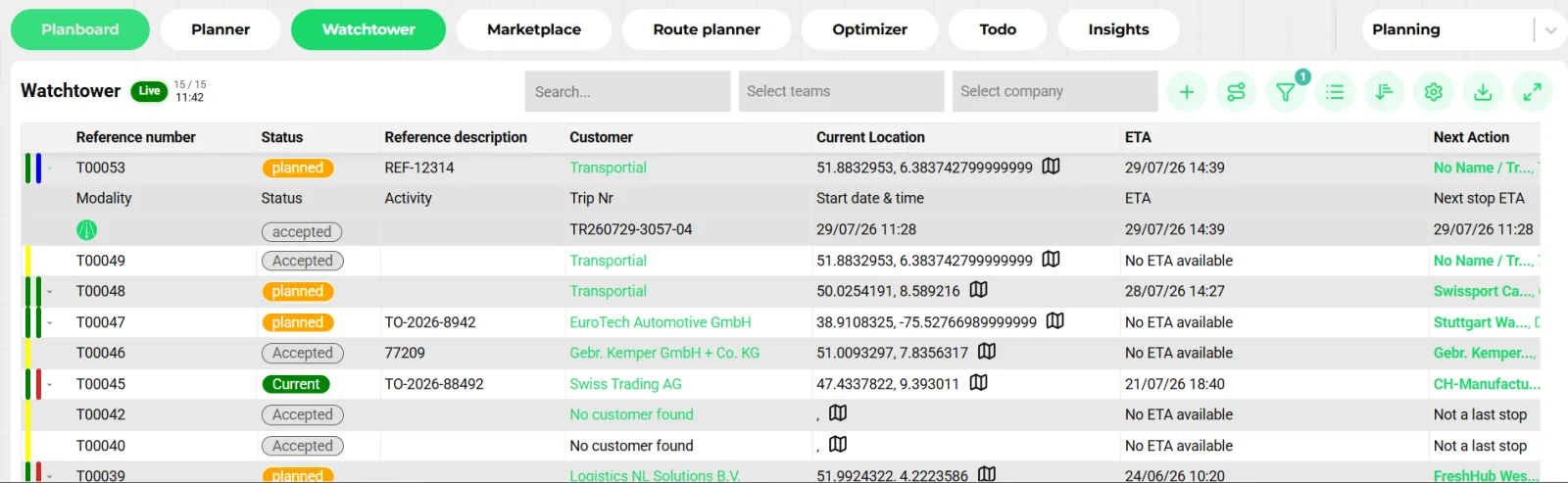
A live list of every shipment with its trip, plan status, current location, ETA and next action, filterable by order status, trip status and plan status, with XLS export and a "Create order" shortcut.
- Bulk trip planner
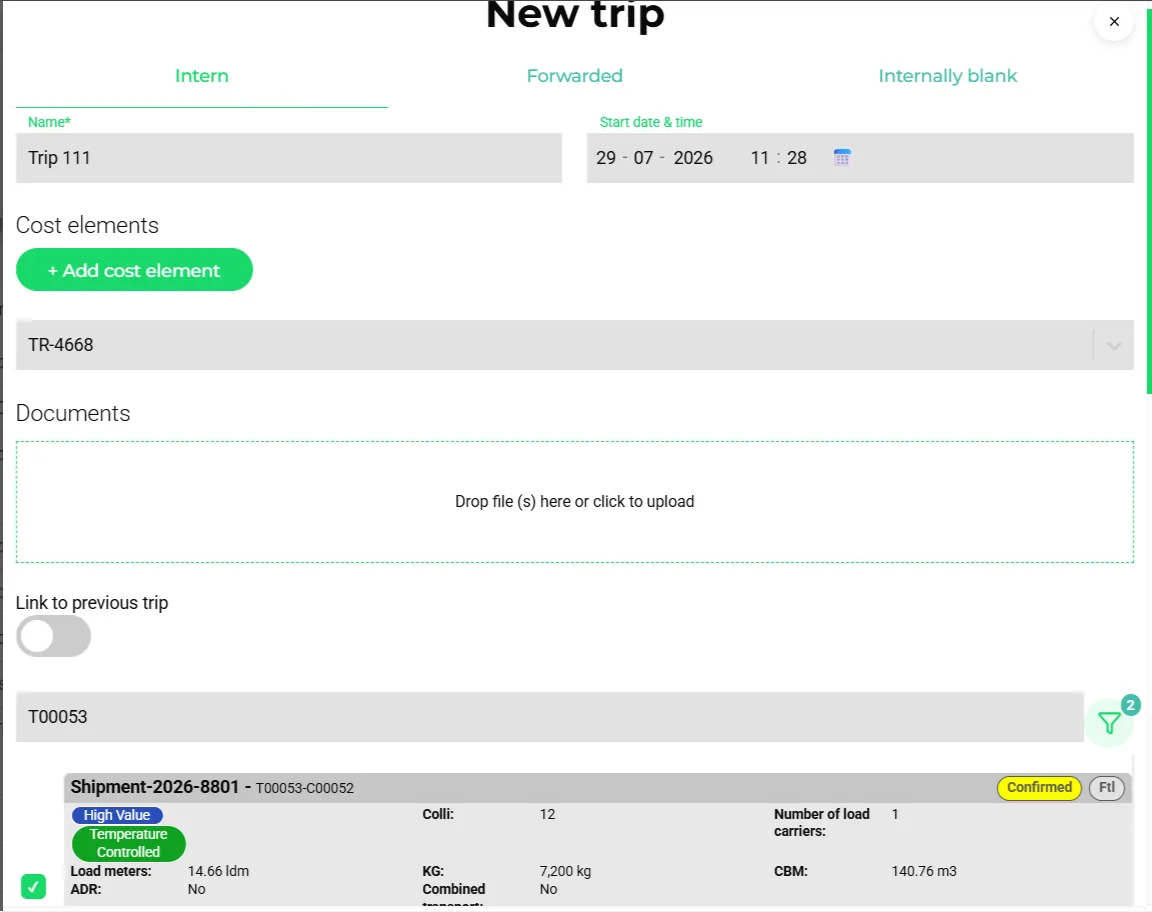
Select shipments, define legs such as pre-haul, ferry and last mile, split and preview, then assign a vehicle, capacity contract or booking per leg.
- Replanning suggestions
The exceptions engine raises trip not started, stop overdue, time window at risk, no vehicle or driver, no signal, shipment not planned, action failed and timing drift, and proposes assign, notify customer, contact driver, minimal change, move to another trip or replan all.
How it works
Choose the board
Vehicles, drivers, trips or means of transport. Save column sets and filters per user, or per settings group ("perspective") with a keyboard shortcut.
Pull in the backlog
Unplanned shipments show on the Watchtower and in the planner's search panel, filterable by customer, region, date or attribute.
Drag or recommend
Drag a load onto a lane, or open the recommendations to see ranked candidates with their reasons. Route, ETA and plan status update on drop.
Check the guardrails
Driver hours, cabotage, capacity in weight and load meters, ADR qualification and double bookings are checked as built-in alerts the moment a trip is saved.
Confirm and dispatch
Confirm the trip to send it to the driver via the driver app, a board computer, WhatsApp or Telegram through message automations.
Watch it run
Live mode shows position, ETA and next action per trip. Exceptions surface as replanning suggestions you evaluate, accept or dismiss.
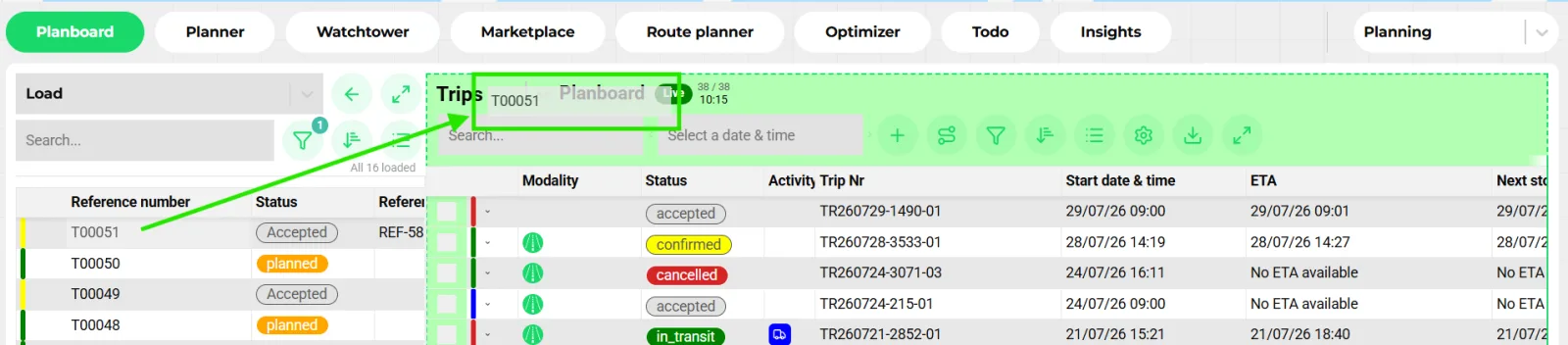
Why planning around resources beats planning around orders
An order list tells you what must move. A resource board tells you what can move it. Planners live in the second view because the scarce thing is a driver with hours left, a truck near the pickup and a trailer of the right type. Transportial's boards put those constraints in columns next to the lane, so the check happens while dragging, not after.
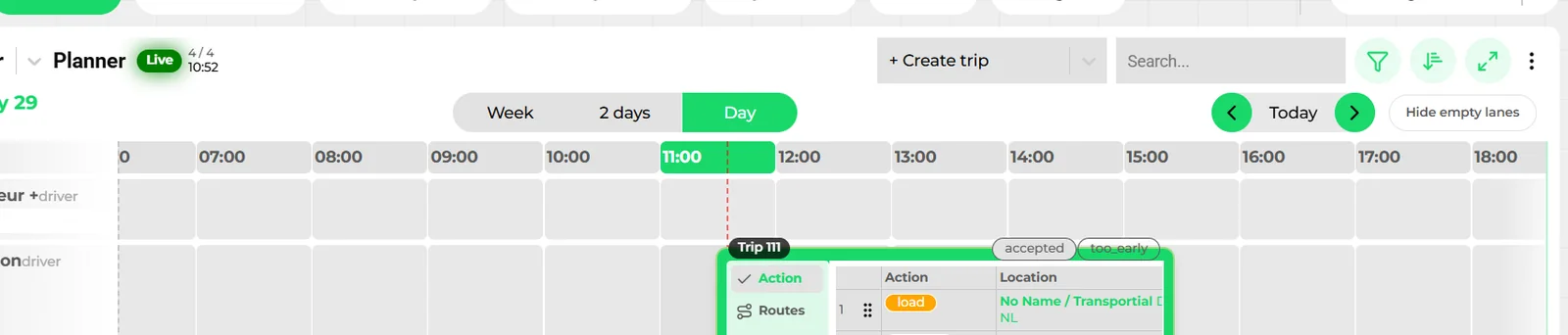
The same data feeds the Planner timeline. Trips, driver activities and calendar events share lanes, so a rest period, a vacation or a workshop slot blocks the space visually before an assignment is attempted.
Guardrails instead of gates
Transportial does not stop a planner from saving a risky trip. It flags it. Built-in checks run on every trip save: insufficient remaining drive time, rest due, weekly limit, weight or load-meter capacity exceeded, missing ADR certificate, expiring license or tacho card, banned driver for that customer, non-operational vehicle, negative margin, unpriced order and more, each with a level (error, warning, information) and a resolution SLA.
Alerts auto-solve when the condition clears, and tenants add their own rules from any trigger event plus a condition. The board shows the alert on the row, so the fix happens in the same place as the plan.
When the plan breaks: the exceptions engine
A scheduled sweep compares the plan to reality with tenant thresholds: trip start overdue after 30 minutes, action overdue after 45, time window at risk 15 minutes before breach, no assignment 12 hours before start, signal lost for 2 hours, still unplanned 24 hours before pickup.
Each exception comes with suggestions the planner can evaluate first, seeing the delay and cost deltas, then accept or dismiss: a minimal change, a cross-trip move, a full replan, assign a resource, notify the customer or contact the driver. Canceling a trip releases unexecuted actions and anchors the remaining work so it can be replanned instead of lost.
Concepts & terminology
The words this module uses, with links to the full glossary where a term has its own page.
- Planboard
- The grid view per vehicle, driver, trip or means of transport with configurable columns, live updates and bulk actions.
- Planner
- The Gantt-style timeline (day, 2 days, week) that shows trips, driver activities and calendar events per resource.
- WatchtowerGlossary
- The live shipment list with trip, plan status, current location, ETA and next action; also available to customers in the portal.
- Plan statusGlossary
- OK, too early, too late, off route or not planned: the ETA of each stop compared with its requested window.
- Trip
- The executed journey: a vehicle, drivers, equipment, the shipments on board and the ordered actions, with a status from draft and requested through confirmed, in transit and completed.
- Capacity contract
- Hired-in capacity (a subcontractor, hired vehicle or hired driver) that appears on the board like your own fleet and can be self-billed.
- Cabotage
- Domestic transport by a foreign carrier, limited to three journeys per international trip; counted per vehicle on the board.
- Replanning suggestion
- A proposed fix for a planning exception, with evaluated delay and cost deltas, that a planner accepts or dismisses.
- Perspective
- A named settings group with default columns, filters, landing view and a keyboard shortcut to switch between planning roles.
Inside the product
Try it free first
Free tools that do part of what Interactive Plan Board does, no account needed. When doing it one by one gets old, the module does it for every order automatically.
Works with
Connectors that feed or consume this module out of the box.
 Webfleet
 Trimble
 Squarell
 Google Calendar
 Microsoft Calendar
 Apple Calendar
Built for
Where this module carries the most weight.
Frequently asked questions
Which resources can I plan on?
Vehicles, drivers (chauffeurs), trips and means of transport (trailers, containers, swap bodies) each have their own board and planner lanes. Subcontracted capacity from capacity contracts appears alongside your own fleet.
Does the board check driving hours?
Yes. Remaining daily, weekly and two-weekly driving time, reduced rests left and rest due are shown as columns and checked as alerts on every trip save, using EU 561/2006 rules and live data from board computers and tacho sensors.
Can several planners work at the same time?
Yes. Boards run in live mode and receive server pushes, so a change by one planner appears for the others without refreshing.
What happens when a driver becomes unavailable?
Availability enforcement can ignore, warn or block an assignment that clashes with a driver timeslot. If a running trip breaks, the exceptions engine raises a replanning suggestion with alternatives you can evaluate before accepting.
Can I plan multi-leg or multimodal jobs in bulk?
The bulk trip planner splits selected shipments into named legs such as pre-haul, ferry and last mile, previews the result and assigns a vehicle, capacity contract or booking to each leg.
Is there a map view?
Yes. The dashboard shows a map planner above the boards, vehicles open an active-trip mini map, and the map-planning view lets you lasso unplanned shipments, build a trip draft and compare route alternatives before creating the trip.
View all features
Ready to put this to work?
Start free with full platform access, or talk to our team about your specific operation.